
Use merge tags, user meta, and smart email templates to make WordPress emails feel like they were written for one person. That means saying “Hi Maya,” showing her last order, linking to her account, or suggesting the next step based on her role. WordPress powers about 43% of all websites, so even tiny email upgrades can affect a lot of customers.
TLDR: Personalize WordPress emails by pulling user details like first name, order history, membership level, course progress, or saved preferences into your email text. For example, a fitness site could send “Hi Leo, your 3rd workout is ready” instead of “Your workout is ready.” In a small store with 2,000 buyers, even a 12% lift in clicks can mean 240 more people visiting your offer. Start with names and account links, then add smarter content later.
Why personalized WordPress emails work
Generic emails feel like wet cardboard: “Dear user.” “Your item.” “Click here.” Nobody is excited.
Personalized emails feel useful. They answer the quiet question every reader has: “Is this for me?”
If the email says their name, mentions their plan, or points to the exact product they bought, the answer is clear. Yes. It is for them.
This helps with:
- Welcome emails for new members.
- WooCommerce emails after purchases.
- Password reset emails that feel safer.
- Course emails for lessons and progress.
- Membership reminders before renewal.
- Abandoned cart emails with the actual cart items.
What user information can you use?
WordPress stores more user data than many site owners realize.
You can use basic information first. Then get fancy later.
Start with simple fields
- First name
- Last name
- Email address
- Username
- Display name
- User role
- Registration date
Then add custom fields
- Membership level
- Company name
- Phone number
- Favorite category
- Course progress
- Last order value
- Coupon code
This is where the magic kicks in. A plain email says: “Your subscription is ending soon.”
A better email says: “Hi Nora, your Pro plan ends on May 18. Renew today and keep access to your client reports.” Same email, but much better punch.
The easiest method: use an email plugin with merge tags
If code makes your eyes twitch, use a plugin.
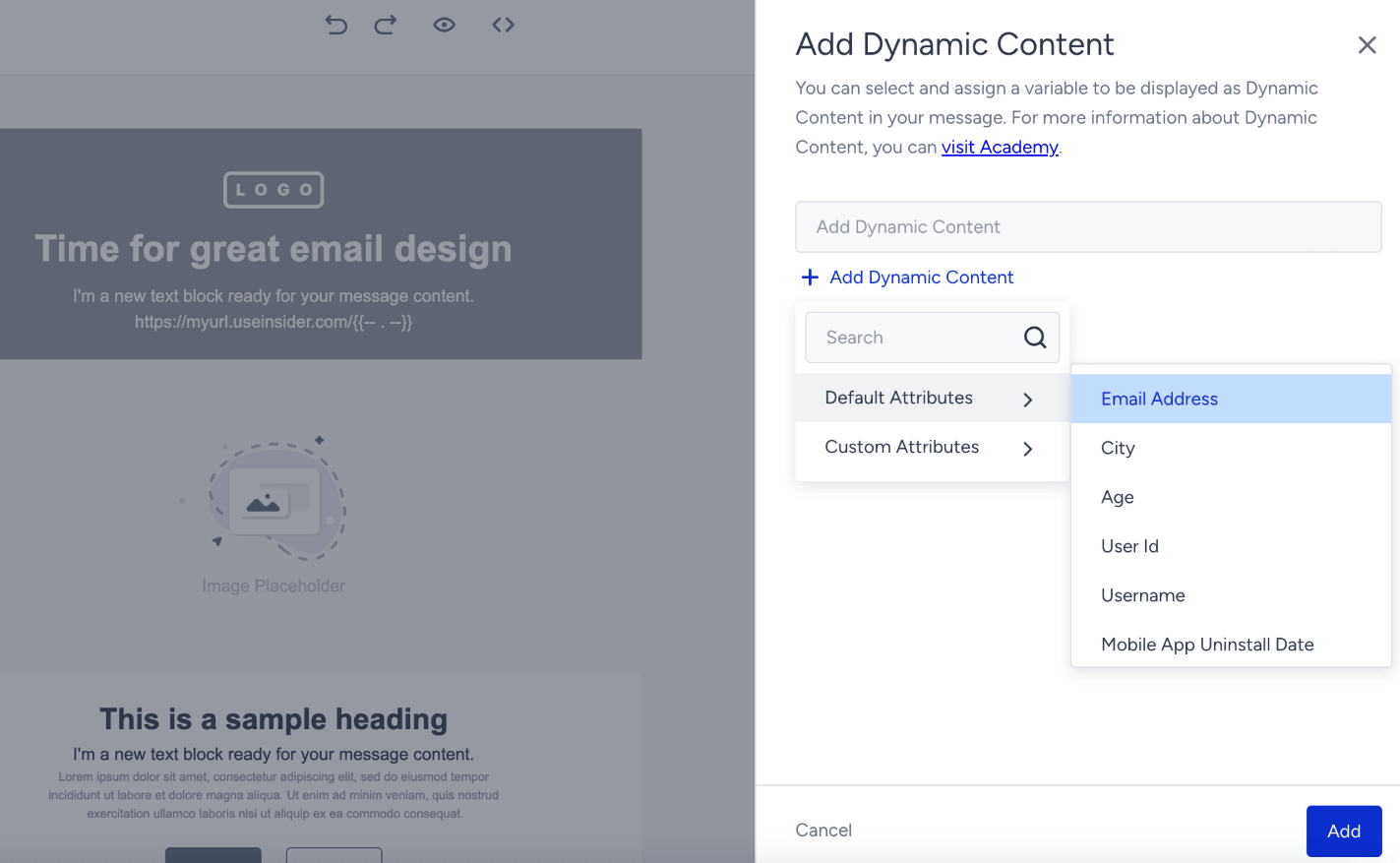
Most email plugins support merge tags. These are little placeholders that turn into real user details when the email sends.
They often look like this:
- {first_name}
- {user_email}
- {order_number}
- {membership_level}
- {reset_password_link}
So your email template might say: Hi {first_name}, your order #{order_number} is ready.
When sent, it becomes: Hi Sam, your order #4582 is ready.
Honestly, it feels like some plugins hide these tags just to test your patience. Expect to spend a few extra minutes digging through settings named “notifications,” “template editor,” or “email builder.” Annoying? Yes. Worth it? Also yes.
Good plugins for this job
You have several options, depending on your site.
- WooCommerce: Best for store emails, order details, shipping updates, and coupons.
- FluentCRM: Good for user segments, email sequences, and customer details.
- AutomateWoo: Strong for WooCommerce follow-ups and cart recovery.
- Uncanny Automator: Nice for “if this happens, send that email” workflows.
- WP Mail SMTP: Helps your emails actually arrive. Very useful.
- Members or MemberPress: Good for membership email fields and plan data.
Pick the tool that matches your site type. Do not install five plugins just because a blog post mentions them. That road gets messy fast.
How to personalize WooCommerce emails
WooCommerce already includes many customer and order details.
You can add:
- Customer name
- Order number
- Billing address
- Shipping address
- Product names
- Delivery method
- Order total
Go to WooCommerce > Settings > Emails. Pick the email you want to edit. Change the subject line, heading, and body where your setup allows it.
Example subject lines:
- “Thanks, {first_name}! We got your order.”
- “Your {product_name} is on the way.”
- “Need help with your new {product_name}?”
That last one is great. It feels helpful, not pushy.
How to use user meta
User meta is extra information attached to a WordPress user.
Think of it like sticky notes on a user profile.
You might store:
- Favorite_topic
- Membership_plan
- Last_login
- company_name
A plugin may let you place these fields into emails with a tag. If not, a developer can pull them with WordPress code.
Do not panic if that looks weird. You do not need to write code for every email. Often, your plugin handles this through a friendly editor.
Smart ideas you can copy
Here are simple email upgrades that work for many sites.
For online stores
- Show the customer’s first name.
- Mention the item they bought.
- Send care tips for that item.
- Offer a coupon based on their category.
For course sites
- Show the next lesson link.
- Mention course progress.
- Celebrate milestones.
- Remind inactive students after 7 days.
For membership sites
- Show the current plan name.
- Remind users before renewal.
- Suggest plan upgrades.
- Send member-only links.
Keep it friendly, not creepy
Personalization is great. Overdoing it is weird.
Good: “Hi Alex, your Plus plan renews Friday.”
Too much: “Hi Alex, we noticed you opened three emails at 9:42 PM and stared at the pricing page.”
Use personal details to help the user. Not to make them feel watched.
Test before sending
This part matters.
Send test emails to yourself. Use different user types. Try a customer, a subscriber, an admin, and a member.
Check for:
- Broken merge tags
- Missing names
- Ugly spacing
- Wrong links
- Old coupon codes
- Emails landing in spam
A broken tag like {first_name} sitting in a real customer email looks sloppy. It also takes about 10 seconds to spot in testing. Save yourself the headache.
Use fallback text
Not every user has a first name saved. So add fallback text.
Instead of: “Hi {first_name},” Use something like: “Hi there,”
Many plugins let you set this. If the first name is missing, the email still feels normal.
A simple setup plan
- Pick one email. Start with your welcome email.
- Add the first name. Keep it simple.
- Add one useful detail. Plan, product, lesson, or order number.
- Add one clear button. Do not stuff in five links.
- Send tests. Check desktop and phone.
- Watch clicks. Compare results after two weeks.
The big win is not fancy tech. It is relevance.
If your email knows who the person is, what they did, and what they need next, it already beats most inbox noise.
Start small. Add the name. Add the right link. Add one detail that proves the email belongs to them. That is enough to make WordPress emails feel warmer, sharper, and far less robotic.